If you’ve spent time in AI coding communities recently, you’ve probably seen screenshots like this:
Bug found.

Null check missing.

API fail.

Fix validation.

Ship.
At first glance, it looks like someone forgot how to write English.
In reality, it’s one of the most popular AI coding skills of the year.
Meet Caveman.
Its philosophy is simple:
Why use many tokens when few do trick?
Instead of making AI assistants write long conversational responses, Caveman teaches them to communicate using short, direct, technically accurate answers.
The funny part is the language.
The serious part is the potential reduction in output tokens and reading time.
Let’s see what Caveman actually is and how you can install it in a few minutes.
Also Read: Graphify Tutorial: Reduce AI Token Usage for Large Codebases
What is Caveman?
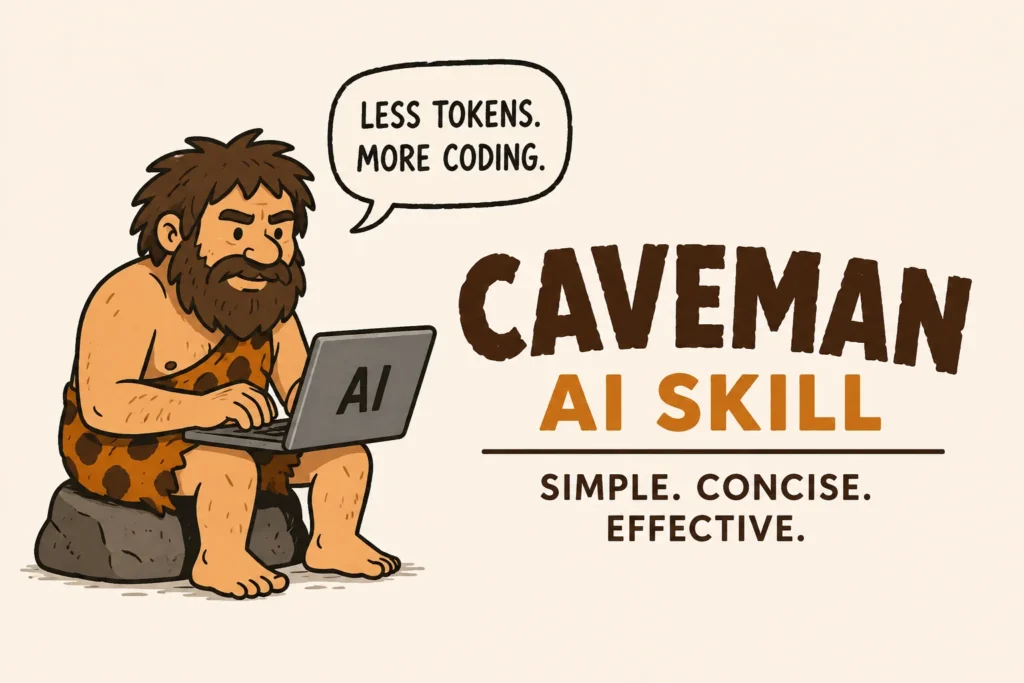
Caveman is an AI Agent Skill designed for modern coding assistants.
It works with multiple AI tools including:
| Tool | Supported |
|---|---|
| Claude Code | ✅ |
| Cursor | ✅ |
| Codex | ✅ |
| VS Code Agent Skills | ✅ |
| Gemini CLI | ✅ |
| GitHub Copilot | ✅ |
| Windsurf | ✅ |
The project describes itself as a skill/plugin that makes coding agents “talk like cavemen” while maintaining technical accuracy. The goal is to reduce unnecessary output tokens and developer reading overhead.
Why Was Caveman Created?
Let’s compare.
Normal AI response:
I've analyzed the authentication system and identified several possible issues that could explain the observed behaviour.
Caveman response:
Auth broken.

JWT bad.

Check expiry.

Fix middleware.
Both communicate the same idea.
One simply uses fewer words.
For developers debugging production systems, this style can be surprisingly efficient.
How Does Caveman Work?
Caveman doesn’t make the AI less capable.
It changes how the AI communicates.
Think of it like changing from:
Formal report.
To:
Engineering notes.
The model still performs reasoning internally.
Only the final response style changes.
Installing Caveman
One of the nicest things about Caveman is that you don’t have to install it separately for every supported tool.
The project provides a unified installer.
According to the official installation guide, it:
- Detects supported AI agents.
- Installs native integrations.
- Configures supported environments.
- Skips tools you don’t have installed.
You can even preview the process before installing.
Step 1: Preview Installation
If you want to see what Caveman will install:
curl -fsSL https://raw.githubusercontent.com/JuliusBrussee/caveman/main/install.sh | bash -s -- --dry-run
This performs a dry run.
No changes are made.
Step 2: Install Caveman
Run:
curl -fsSL https://raw.githubusercontent.com/JuliusBrussee/caveman/main/install.sh | bash
The installer automatically detects compatible AI tools on your machine.
According to the official documentation, it’s safe to rerun if you install additional agents later.
If you want easier option:
Just paste once:
Caveman mode ON:
- No filler
- Short answers
- Use arrows
- No explanation unless asked
Installing Caveman for Claude Code
If you’re a Claude Code user, Caveman supports native integration.
The official installation documentation includes a Claude Code installation path.
Once installed, Caveman can automatically activate for Claude Code sessions.
Open Claude Code and simply start working.
Example:
Review authentication.

Use caveman.
Example output:
JWT bad.

Expiry check missing.

Fix middleware.

Test.
Installing Caveman for Cursor
Cursor supports the Agent Skills ecosystem.
The unified installer detects Cursor and installs the required integration automatically when available.
Restart Cursor after installation.
Open AI Chat.
Example:
Review payment API.

Keep caveman style.
Possible response:
Payment slow.

DB query repeat.

Cache help.

Optimize.
Installing Caveman for Codex
Codex also supports the Agent Skills standard.
The unified installer can configure supported Codex environments automatically.
Example:
Review PR.

Find problems.
Response:
Null pointer.

Missing test.

Duplicate logic.

Fix.
What About VS Code?
Many developers ask:
Can I use Caveman in VS Code?
The answer is yes, but indirectly.
Caveman works through AI agents that support the Agent Skills standard.
If you’re using supported AI tooling inside VS Code, the same skill can become part of your workflow.
Let’s Try a Real Example
Suppose you’re maintaining a FastAPI shipment system.
A shipment creation request fails.
Normal prompt:
Why is shipment creation failing?
Caveman style:
Shipment fail.

Possible:

Bad payload.

Customer missing.

DB timeout.

Check logs.

Check rollback.
As a developer, that’s usually enough to start debugging.
Example: AI-Based OCR Pipeline
Imagine an OCR pipeline extracts invoice data.
Some invoices fail.
Ask:
Find OCR problem.

Use caveman.
Possible response:
OCR good.

Parser bad.

Date format wrong.

Retry parser.

Test.
Short.
Actionable.
Easy to read.
When Should You Use Caveman?
Caveman works particularly well for:
✅ Bug fixing
✅ Pull request reviews
✅ Code review
✅ Debugging
✅ Security checks
✅ Refactoring
✅ Dependency analysis
When Should You Avoid Caveman?
It’s not ideal for every task.
Avoid it when:
❌ Learning a framework
❌ Writing documentation
❌ Teaching beginners
❌ Architecture discussions
❌ Algorithm explanations
Detailed responses are sometimes exactly what you need.
Practical Prompts
Debug
Find bug.

Short answer.
Review PR
Review changes.

List issues.
Security
Check auth.

Find weakness.

Keep brief.
API
Trace checkout API.

Short steps.
Refactor
Find duplicate code.

Suggest cleanup.
Does Caveman Really Save Tokens?
The exact savings depend on your workflow.
Caveman mainly reduces output verbosity rather than changing the model’s reasoning process.
Developers performing hundreds of coding interactions each week may appreciate:
- Shorter responses
- Faster reading
- Less conversational filler
- Cleaner debugging output
The Caveman project itself highlights significant output token reductions while preserving technical accuracy.
Should You Install Caveman?
If you’re using:
- Claude Code
- Cursor
- Codex
- AI coding agents
the installation takes only a few minutes and is easy to experiment with.
You can always switch back to normal conversational responses when detailed explanations are needed.
Think of Caveman as another mode for interacting with AI.
Normal mode:
Learn.
Explore.
Discuss.
Caveman mode:
Debug.
Review.
Ship.
Final Thoughts
Caveman started as a funny idea.
An AI assistant that talks like a caveman.
But behind the humour is an interesting productivity concept.
Developers don’t always need long explanations.
Sometimes they just need:
Bug here.

Fix this.

Ship code.
Whether you’re using Claude Code, Cursor, Codex, or AI-powered workflows inside VS Code, Caveman is worth trying if you prefer concise technical communication.
And who knows?
After a few days, you might find yourself talking like a caveman too.
Bug fixed.
Developer happy.
Coffee time.
Further Reading
If you’re interested in improving AI-assisted development workflows, you may also enjoy our Graphify guides, where we explore another developer tool focused on helping AI understand large codebases more efficiently.