AI coding assistants are excellent at writing code, but they have one major weakness: understanding large projects.
Have you ever asked your AI assistant:
- “Where is authentication implemented?”
- “What happens when a user places an order?”
- “Which files will break if I modify this API?”
The AI often scans dozens of files, consuming thousands of tokens just to understand your project structure. This becomes expensive and slow, especially when working with large Python, FastAPI, Next.js, or enterprise applications.
This is where Graphify comes into the picture.
In this tutorial, we’ll explore what Graphify is, how it works, how to use it with VS Code, and how it can significantly reduce AI token consumption.
Graphify does not magically plug into Cursor, Claude Code, or Codex and automatically inject context into every prompt. The workflow is:
- Install Graphify.
- Generate the knowledge graph (
graphify .). - Keep it updated as the project evolves.
- Use the generated artifacts and Graphify-aware prompts to help the AI navigate the codebase.
Also Read: Claude Code Tutorial for Beginners
What is Graphify?
Graphify is an open-source tool that analyzes your codebase and creates a knowledge graph of your project.
Instead of making an AI assistant repeatedly scan hundreds of files, Graphify builds a map of:
- Files
- Classes
- Functions
- Imports
- Dependencies
- Relationships
- Architecture
Think of it as Google Maps for your source code.
Rather than asking AI to explore the entire city every time, Graphify gives it a ready-made map.
Why Do We Need Graphify?
Imagine you have this project:
FastAPI Project

app/
├── main.py
├── auth/
├── users/
├── payments/
├── database/
├── middleware/
├── services/
├── utils/
└── models/
Suppose you ask:
Where does user login happen?
Without Graphify:
AI might need to inspect:
- main.py
- auth.py
- JWT middleware
- database models
- user service
- API routes
- configuration files
This could easily require 20,000 to 50,000 tokens.
With Graphify:
The AI already knows:
Login API
    ↓
Auth Router
    ↓
JWT Service
    ↓
User Service
    ↓
Database
Only the relevant files are loaded.
The result?
- Faster responses
- Lower token costs
- Better architectural understanding
How Does Graphify Work?
Graphify scans your repository and extracts information such as:
File relationships
main.py

imports

auth.py

imports

database.py
Function calls
login()

calls

verify_password()

calls

generate_jwt()
Class relationships
UserService

uses

Database

uses

UserModel
All these relationships are stored in a graph structure.
Installing Graphify
Graphify requires Python.
GIT: https://github.com/safishamsi/graphify
Install UV first:
Windows:
winget install astral-sh.uv
Mac/Linux:
curl -LsSf https://astral.sh/uv/install.sh | sh
Install Graphify:
uv tool install graphifyy
Verify installation:
graphify --help
If everything works, you’re ready.
Creating Your First Graph
Navigate to your project.
cd MyFastAPIProject
Run:
graphify .
Graphify will scan your repository.
Depending on project size, this may take a few seconds.
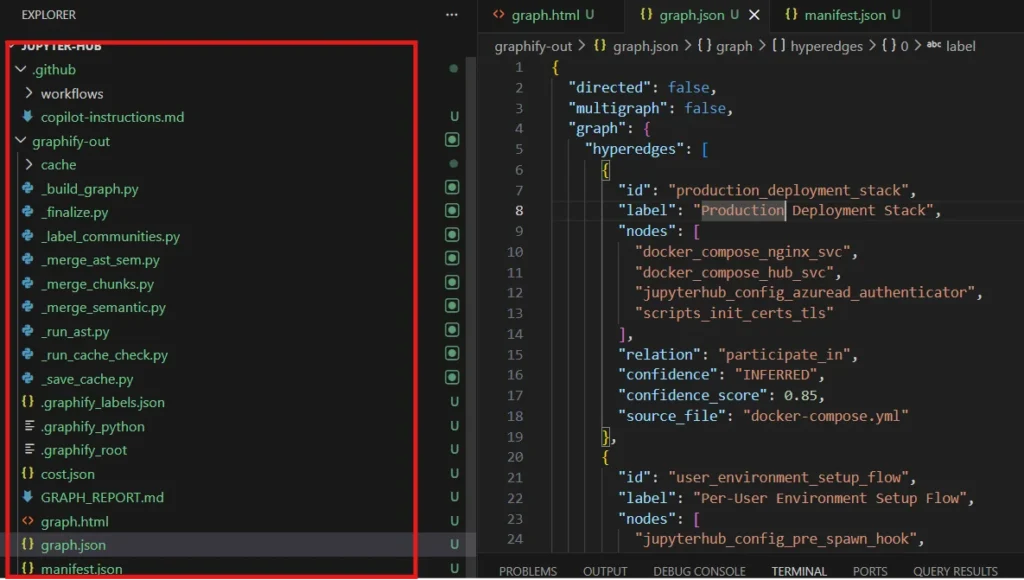
Generated Files
Graphify creates useful outputs.
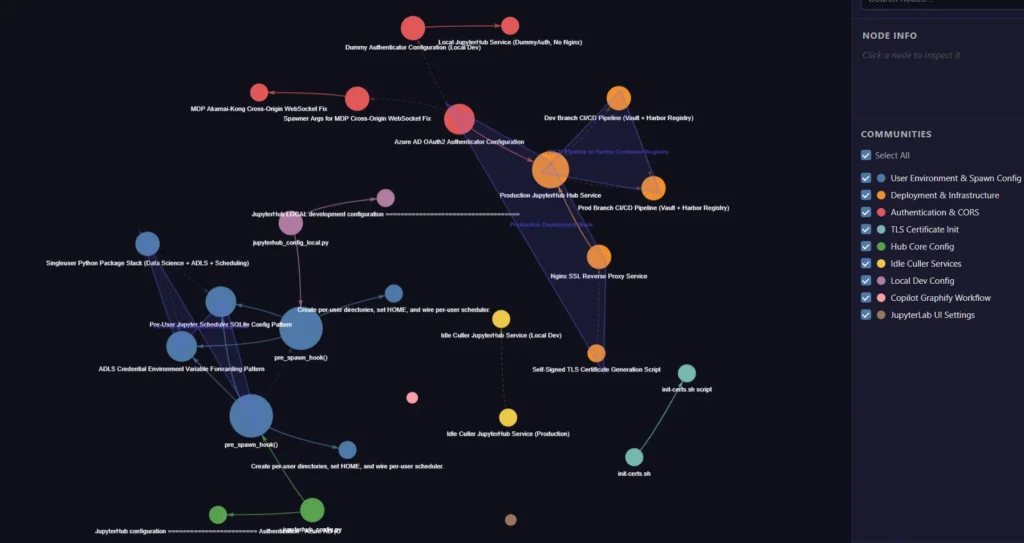
graph.html
An interactive visualization.
You can click nodes and explore dependencies visually.
This is especially useful for onboarding new developers.
graph.json
Machine-readable output.
AI assistants can use this information for efficient querying.
GRAPH_REPORT.md
A human-readable architecture summary.
Example:
Authentication

JWT Middleware

User Service

Database

PostgreSQL
This gives a quick overview of project structure.
Graphify Folder Structure:
Using Graphify with Cursor, Claude Code, and Codex
Installing Graphify is only half the story. The real value comes from integrating it into your daily AI-assisted development workflow.
In this section, we’ll see how to use Graphify with the most popular coding assistants.
After installing Graphify, run:
graphify install
This command installs the AI integration components and configures Graphify for supported coding assistants.
Verify installation:
graphify --version
Generate the graph:
graphify .
Now, instead of asking:
Explain this project.
Ask more focused questions:
Where is JWT authentication implemented?

Trace the payment workflow.

Which files depend on UserService?

Find dead code.

Show API flow for order creation.
The AI can use the graph instead of scanning the entire repository.
Real-World Example
Let’s imagine an e-commerce application.
Project structure:
app/

users/

products/

cart/

orders/

payments/

notifications/
Suppose we ask:
How does an order get created?
Graphify might identify:
Order API

Order Service

Inventory Check

Payment Service

Database

Notification Service

Email Sender
The AI only investigates these components.
This improves both speed and accuracy.
Token Savings
Let’s compare.
Small project:
20 files
Without Graphify:
2,000 tokens
With Graphify:
1,500 tokens
Savings are small.
Medium project:
100 files
Without Graphify:
15,000 tokens
With Graphify:
3,000 tokens
Significant improvement.
Large enterprise project:
500+ files
Without Graphify:
50,000+ tokens
With Graphify:
5,000 to 10,000 tokens
This is where Graphify becomes extremely valuable.
When Graphify May Not Help
Graphify isn’t necessary for every project.
Avoid it for:
- Small scripts
- Coding interview problems
- Single-file utilities
- Tiny personal projects
The overhead may not provide significant benefits.
Tips for Maximum Efficiency
Regenerate after major changes
Whenever architecture changes significantly:
graphify .
Run it again.
Ask architectural questions
Instead of:
Explain everything.
Ask:
What depends on PaymentService?

Which APIs use Redis?

Show user registration flow.
Focused questions produce better results.
Combine with AI coding assistants
Graphify works nicely alongside:
- GitHub Copilot
- Claude Code
- Codex
- Cursor
- Continue.dev
It complements these tools by providing architectural context.
Common Mistakes
Regenerating too often
You don’t need to rebuild the graph after every code change.
Major structural updates are enough.
Asking vague questions
Avoid:
Explain my project.
Prefer:
Trace authentication flow.
Expecting Graphify to write code
Graphify is not an AI model.
It doesn’t generate code.
It organizes your codebase so AI assistants can understand it more efficiently.
Is Graphify Worth Using?
The answer depends on project size.
For small projects, probably not.
For medium and large repositories, especially when using AI coding assistants daily, Graphify can save time and reduce token consumption by helping the AI navigate your codebase intelligently.
If you regularly work with FastAPI, Next.js, enterprise Python applications, or multi-module repositories, Graphify is worth adding to your development toolkit.
Rather than replacing your AI assistant, Graphify acts as a navigation layer that helps the assistant understand your project’s architecture faster and more efficiently.
Final Thoughts
Large codebases are becoming increasingly difficult for AI assistants to navigate efficiently. Graphify tackles this problem by transforming your repository into a structured knowledge graph that both humans and AI can understand.
Whether you’re debugging a production issue, refactoring a service, onboarding a new developer, or simply trying to save AI tokens, Graphify offers a practical approach to understanding complex software systems.
As AI-assisted development continues to evolve, tools like Graphify are likely to become a standard part of the modern developer workflow.